Live Dashboard
Overwatch includes a real-time graph visualization dashboard built with sigma.js (WebGL) and graphology. The dashboard provides an interactive, read-only view of the engagement graph with live updates as findings are ingested.
Access
The dashboard starts automatically on port 8384 (configurable via OVERWATCH_DASHBOARD_PORT). No additional setup required — it runs in the same process as the MCP server.
To disable the dashboard, set the port to 0:
Graph Interactions
Node Dragging
Click and drag any node to reposition it. Dragged nodes become fixed — they stay in place while the layout algorithm continues to arrange the rest of the graph. This lets you pin important nodes (like domain controllers or compromised hosts) where you want them.
Animated ForceAtlas2 Layout
The graph uses an animated ForceAtlas2 layout that runs continuously in the background:
- Nodes repel each other and cluster by connectivity
linLogModeandadjustSizesproduce better separation between clusters- New nodes are initially grouped by type before the layout takes over
- The layout auto-stops after ~10 seconds of stability
- Toggle on/off with the Layout button or press Space
Hover Highlighting
Hovering over a node dims all unrelated nodes and edges to 12% opacity, making the neighborhood structure immediately visible. A tooltip appears showing:
- Node type (color-coded badge)
- Label and key properties (IP, hostname)
- Connection count
Edge Coloring
Edges are color-coded by category for quick visual identification:
| Category | Color | Edge Types |
|---|---|---|
| Network | Blue | REACHABLE, RUNS, SAME_DOMAIN |
| Access | Green | ADMIN_TO, HAS_SESSION, CAN_RDPINTO, CAN_PSREMOTE |
| Credential | Amber | VALID_ON, OWNS_CRED, POTENTIAL_AUTH |
| Derivation | Orange | DERIVED_FROM, DUMPED_FROM |
| Attack | Red | CAN_DCSYNC, DELEGATES_TO, WRITEABLE_BY, GENERIC_ALL, CAN_READ_LAPS, CAN_READ_GMSA, RBCD_TARGET, etc. |
| Roasting | Red | AS_REP_ROASTABLE, KERBEROASTABLE |
| ADCS | Purple | CAN_ENROLL, ESC1–ESC8 |
| Lateral | Pink | RELAY_TARGET, NULL_SESSION |
Path Highlighting
Shift+click two nodes to highlight the shortest path between them. The path is drawn in amber with a thicker line weight. An info bar shows the path length and node sequence. Press Esc or click the close button to clear.
Neighborhood Focus
Double-click a node to isolate its 2-hop neighborhood. All other nodes are hidden. A "Show All" banner appears at the top — click it or press Esc to exit focus mode.
Node Sizing
Nodes are sized dynamically by degree (connection count): base + log2(degree + 1) * 1.5. Highly connected nodes like domain controllers and relay targets appear larger.
New Node Pulse
When new nodes arrive via WebSocket (from report_finding or parse_output), they briefly glow with a pulse animation for 2 seconds. This makes it easy to spot new discoveries in real time.
Search
The search box (top-right of the graph) matches against node labels, IPs, hostnames, and IDs. Matching nodes are highlighted; non-matching nodes dim.
Node Detail Panel
Click any node to open the detail panel (bottom-right). It shows:
- Node type badge with color
- All properties as key-value pairs
- Connection count
- Clickable neighbor list (click a neighbor to navigate to it)
- Clickable service summary items (navigate to service/edge nodes)
- Derivation chain (for credential nodes) — walks
DERIVED_FROMedges bidirectionally to show the full credential chain with derivation methods
Frontier Item Navigation
Click any frontier item in the sidebar to zoom the camera to its corresponding graph node.
Sidebar Panels
The sidebar contains six collapsible panels:
| Panel | Content |
|---|---|
| Lab Readiness | Current readiness status and top issues |
| Graph Summary | Node counts by type, confirmed vs inferred edges |
| Objectives | Engagement objectives with achievement status |
| Frontier | Top 15 frontier items (click to zoom to node) |
| Agents | Active sub-agents with status |
| Recent Activity | Last 20 activity entries with timestamps |
Click any panel header to collapse/expand it. Panel state is persisted in localStorage.
Controls
Tape Toggle (Toolbar)
The top toolbar shows a Tape pill that mirrors the in-process JSON-RPC recorder:
- Grey — recorder off (default).
- Red, pulsing — recorder on; the label includes the live frame count.
- Hover — shows the active tape file path.
Click to flip state. The toggle calls POST /api/tape/toggle; mutation auth applies on non-loopback dashboards. The pill hides itself if the build was started without a tape controller attached.
See Tape Recording for env vars, config, and the standalone proxy.
Buttons
| Button | Action |
|---|---|
| + / − | Zoom in / out |
| Fit | Reset camera to fit all nodes |
| Layout | Toggle ForceAtlas2 layout on/off |
| Reset | Clear all filters, restore all node types |
| Export ▾ | Dropdown: PNG screenshot or SVG export of the current view |
| Layers ▾ | Dropdown: Attack Path, Compare Shortest, Credential Flow overlays |
| ? | Toggle keyboard shortcuts overlay |
Layers
The Layers dropdown provides three mutually exclusive visualization overlays:
| Layer | Description |
|---|---|
| Attack Path | Shows the actual attack path taken during the engagement (gold). Reconstructed from the activity history. |
| Compare Shortest | Overlays the theoretical shortest path (cyan) alongside the actual attack path for comparison. |
| Credential Flow | Highlights credential relationships: DERIVED_FROM, OWNS_CRED, VALID_ON, POTENTIAL_AUTH, DUMPED_FROM. Credential nodes show status badges (active=green, stale=amber, expired=red, rotated=purple). |
| Community Hulls | Color-coded convex hull overlays grouping nodes by Louvain community. On by default. Communities are detected automatically from graph topology. |
Activating Attack Path, Compare Shortest, or Credential Flow clears the others. Community Hulls is independent and can be toggled separately.
Keyboard Shortcuts
| Key | Action |
|---|---|
F |
Fit to screen |
Space |
Toggle layout |
Esc |
Clear selection / exit focus / close detail |
R |
Reset filters |
+ / - |
Zoom in / out |
? |
Toggle shortcuts help |
Mouse Interactions
| Action | Effect |
|---|---|
| Click node | Open detail panel |
| Drag node | Reposition (becomes fixed) |
| Hover node | Highlight neighborhood + show tooltip |
| Shift+Click | Path highlight (click two nodes) |
| Double-click | Neighborhood focus (2-hop isolation) |
| Click stage | Close detail panel |
Minimap
A 160×110px minimap in the bottom-right corner shows the full graph at a glance with a viewport rectangle indicating the current camera position. Click anywhere on the minimap to navigate.
Architecture
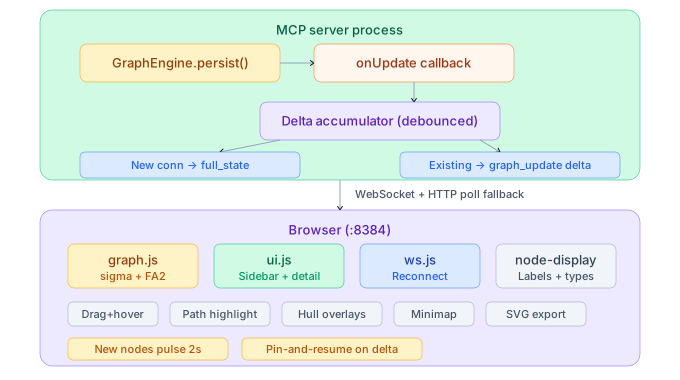
- HTTP serves static files from the
dashboard/directory with MIME types and file caching - WebSocket broadcasts graph deltas on every
persist()call; full state on connect - HTTP polling fallback every 5 seconds if WebSocket disconnects
- Auto-reconnect attempts every 3 seconds on WebSocket close
- Read-only — no mutations from the browser
File Structure
| File | Purpose |
|---|---|
index.html |
Slim HTML shell (~180 lines) loading CDN deps + local scripts |
styles.css |
All CSS (~580 lines) including dark theme, animations, and responsive elements |
graph.js |
Sigma.js init, ForceAtlas2 layout, node drag, hover, path/neighborhood highlight, minimap |
ui.js |
Sidebar panels, node detail, search, keyboard shortcuts, frontier click |
ws.js |
WebSocket connection, reconnect logic, HTTP polling fallback |
main.js |
Entry point wiring all modules together |
Endpoints
| Endpoint | Method | Description |
|---|---|---|
/ |
GET | Dashboard SPA (index.html) |
/styles.css |
GET | Dashboard stylesheet |
/graph.js, /ui.js, /ws.js, /main.js |
GET | Dashboard scripts |
/api/state |
GET | Current engagement state (JSON), includes history_count |
/api/graph |
GET | Full graph export (JSON) |
/api/history |
GET | Paginated activity log. Query params: limit, after (ISO), before (ISO) |
/api/evidence-chains/:nodeId |
GET | Evidence chain for a node — walks provenance edges (DERIVED_FROM, DUMPED_FROM, OWNS_CRED) to build the full derivation tree |
/api/paths/:objectiveId |
GET | Shortest paths from compromised nodes to an objective — returns path arrays with node/edge details |
ws:// |
WebSocket | Live graph delta stream |
Verifying Dashboard Status
Use run_lab_preflight to check dashboard readiness:
Note: get_state returns engagement state only and does not include dashboard status. Use run_lab_preflight for dashboard readiness checks.